> ## Documentation Index
> Fetch the complete documentation index at: https://docs.usefusion.ai/llms.txt
> Use this file to discover all available pages before exploring further.
# How to Create Quests
Neurofusion offers a powerful and accessible way for researchers to conduct studies and enhance experimentations. One of the key features enabling this are "Quests." Quests are interactive, research-oriented prompts or questions designed to explore a specific topic or goal. These prompts can be used to gather insights, test hypotheses, or guide users through a structured exploration of a subject.
Quests allow researchers to design structured data collection experiences for participants, guiding them through a series of tasks, questions, and prompts.
To Learn more on Why Researchers use Neurofusion for their Studies: Read more [here](https://neurofusionresearchinc.mintlify.app/Quests#what-are-fusion-quests).
## **Steps to Create a Quest**
### **1. Defining the Quest**
Choose a clear and specific topic or goal for your Quest.
For example, "Weight Loss Goal" or "Understanding Stress Triggers."
Ensure the topic aligns with your research objectives or the insights you want to gather.
### **2. Create a Quest**
.jpg?fit=max&auto=format&n=bd62qvdKSLQ-9o7W&q=85&s=53277d8ecc3ef15a31b95e0ca2375bff) Head over to [www.usefusion.ai/quests](http://www.usefusion.ai/quests) to create a Quest using the button “Create Quest”.
After defining what the Quest topic or goals are, you can make an interactive Quest.
### **3. Setting up Quests**
First fill in the form with titles marked as important.
Head over to [www.usefusion.ai/quests](http://www.usefusion.ai/quests) to create a Quest using the button “Create Quest”.
After defining what the Quest topic or goals are, you can make an interactive Quest.
### **3. Setting up Quests**
First fill in the form with titles marked as important.
.jpg?fit=max&auto=format&n=bd62qvdKSLQ-9o7W&q=85&s=9a3aeb7c117a89f94db64f0403241587) Next, create an **onboarding question** to gather permissions or initial information from participants. Here you are able to share with participants the purpose of the study, how their data will be used, and their consents.
Next, create an **onboarding question** to gather permissions or initial information from participants. Here you are able to share with participants the purpose of the study, how their data will be used, and their consents.
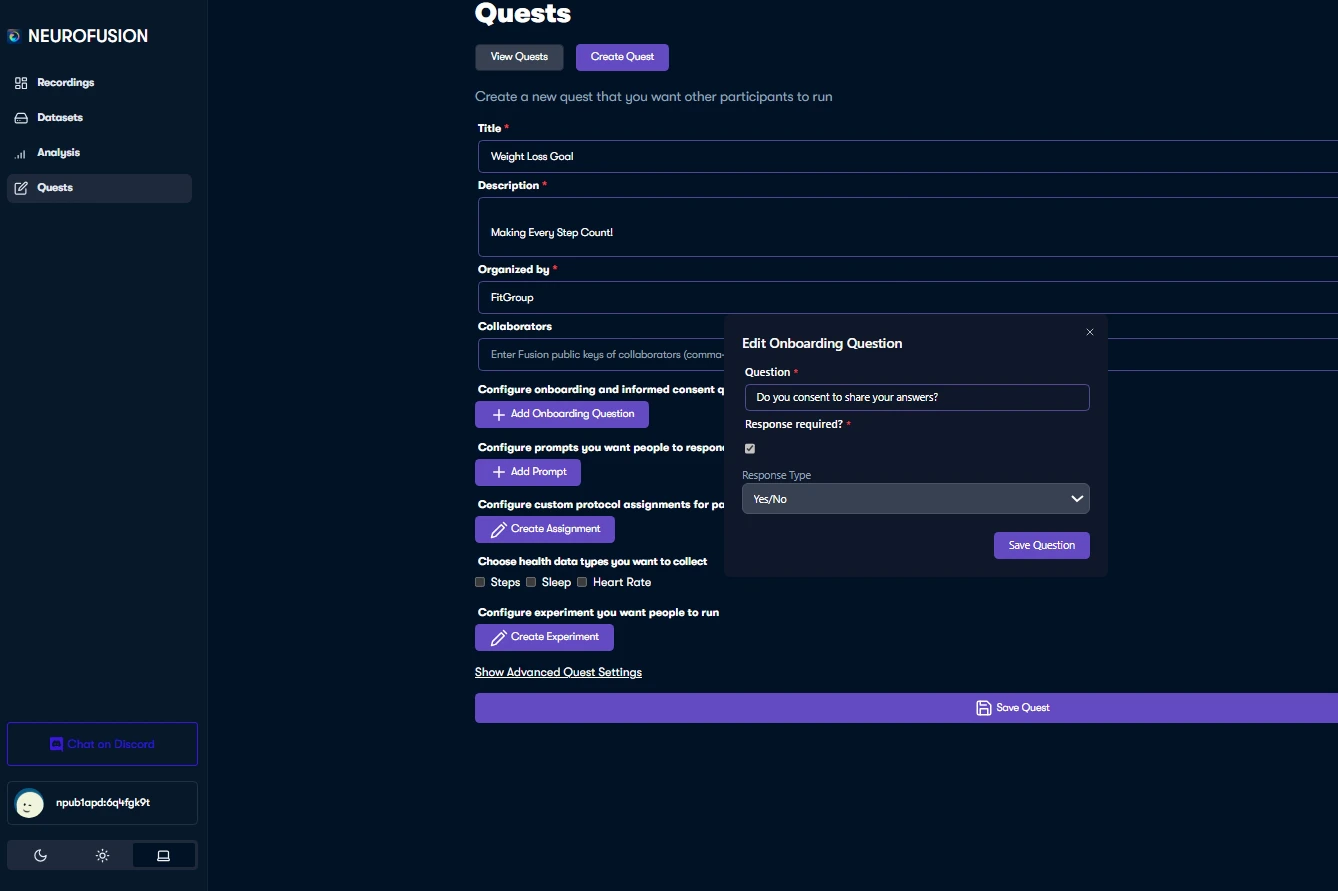 Next, **add prompts** if your Quest needs recurring questions or scheduled check-ins. Prompts are optional, so you can also create a Quest focused only on onboarding, experiments, recordings, or other study components.
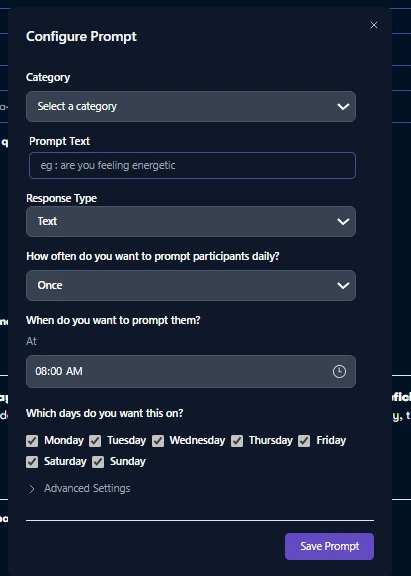 It is crucial to consider the details of each prompt, including:
* **Categories**
: Filter the prompt question into specific categories to organize and tailor the data collection process. eg
*Health/Wellness, Productivity etc*
* **Prompt Text**
: Clearly state the question or instruction to participants.
* **Response Type**
: Define how participants should respond, such as
*Yes/No, Number, Custom Options, or Text.*
* **Frequency**
: Set how often the prompt should appear, like
*daily, hourly*
, etc.
* **Time Schedules**
: Specify the exact times and days of the week when prompts should be delivered to participants.
It is crucial to consider the details of each prompt, including:
* **Categories**
: Filter the prompt question into specific categories to organize and tailor the data collection process. eg
*Health/Wellness, Productivity etc*
* **Prompt Text**
: Clearly state the question or instruction to participants.
* **Response Type**
: Define how participants should respond, such as
*Yes/No, Number, Custom Options, or Text.*
* **Frequency**
: Set how often the prompt should appear, like
*daily, hourly*
, etc.
* **Time Schedules**
: Specify the exact times and days of the week when prompts should be delivered to participants.
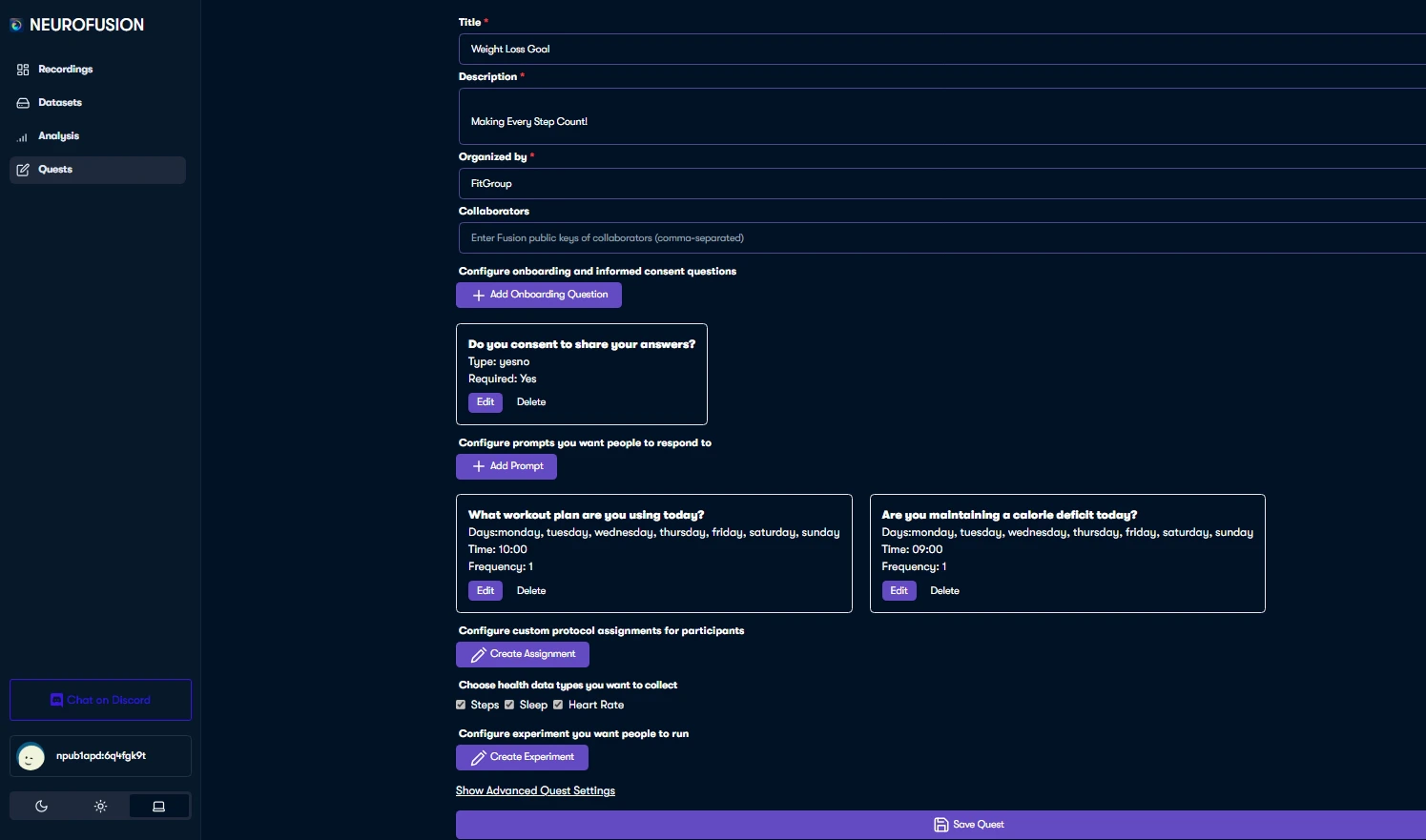 For our "Weight Loss Goal" Quest, we use a combination of daily and timed prompts.
### **4. Scheduling and testing Your Quest**
After creating your Quest, carefully review any prompts you added to ensure accuracy and clarity. Once satisfied with the configuration, **save your Quest**. This will generate a unique Quest code.
Next, open the [Fusion Co-pilot app](https://usefusion.ai/), navigate to "Quests" on the app. Enter the unique Quest code generated in the previous step to launch your study.
For our "Weight Loss Goal" Quest, we use a combination of daily and timed prompts.
### **4. Scheduling and testing Your Quest**
After creating your Quest, carefully review any prompts you added to ensure accuracy and clarity. Once satisfied with the configuration, **save your Quest**. This will generate a unique Quest code.
Next, open the [Fusion Co-pilot app](https://usefusion.ai/), navigate to "Quests" on the app. Enter the unique Quest code generated in the previous step to launch your study.
 ### **5. Publish and Share Your Quest**
###
### **5. Publish and Share Your Quest**
### 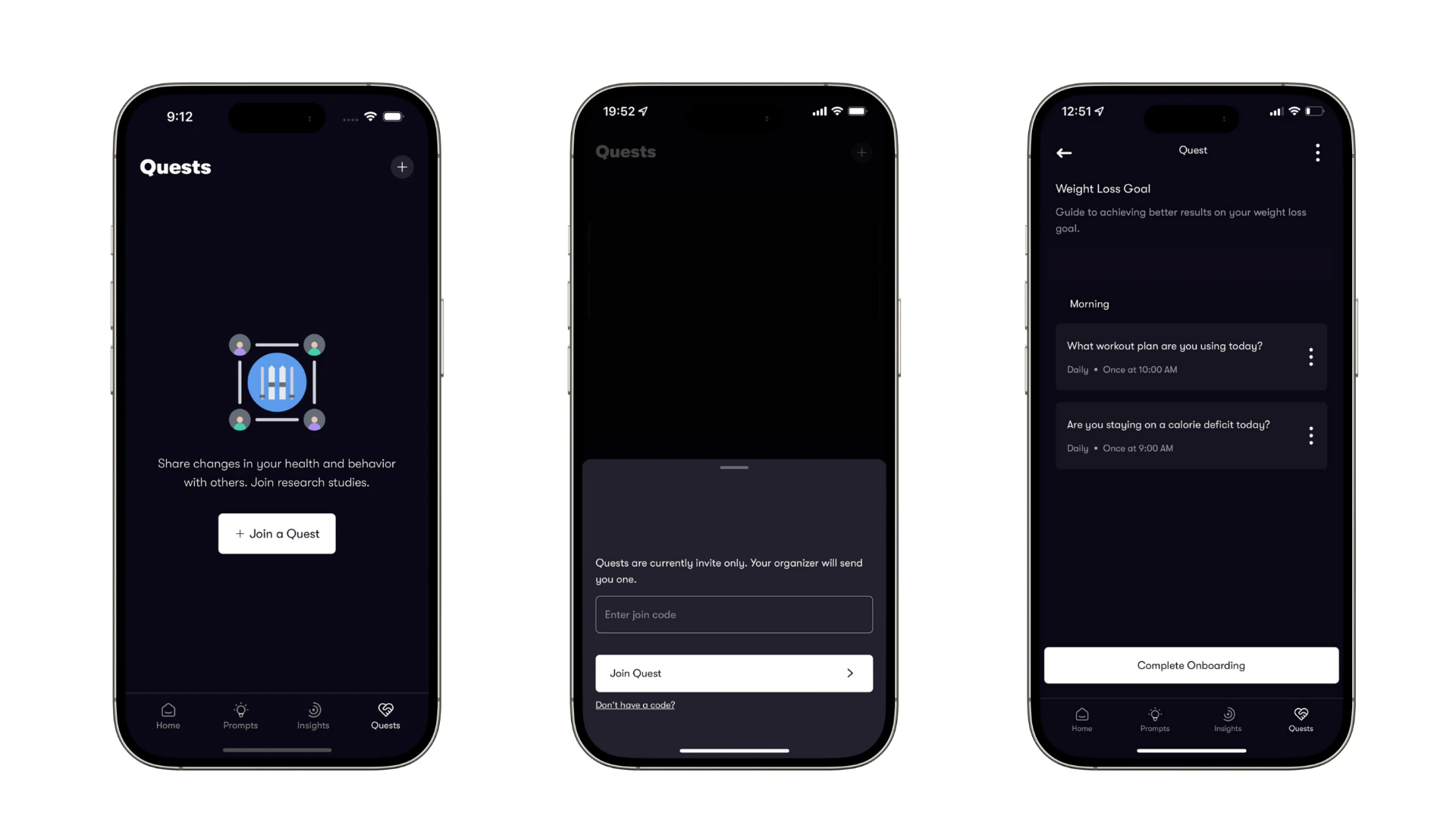 Once your Quest is ready, share the unique Quest code with friends, participants or researchers to start collecting real-time responses.
### **Experimenting with Quests**
The Fusion platform allows you to experiment with different prompts, question formats, and response types. This feature can be used to:
* Test variations of prompts to see which ones yield the most insightful responses.
* Compare long-form and short-form answers to determine which format works best for your research.
* Analyze real-time data to make adjustments and improve your Quest.
**Conclusion:**
Neurofusion is empowering researchers worldwide with the tools to conduct more efficient, accessible, and cost-effective studies. Using Quest to carefully design prompts, schedule them effectively, and leverage the platform's features, researchers can gather valuable data and gain deeper insights into their study area.
Explore more with [Neurofusion](http://www.usefusion.ai) and discover the many possibilities for your own research projects. For more information, visit [www.usefusion.ai/blog/quests](http://www.usefusion.ai/blog/quests) .
Once your Quest is ready, share the unique Quest code with friends, participants or researchers to start collecting real-time responses.
### **Experimenting with Quests**
The Fusion platform allows you to experiment with different prompts, question formats, and response types. This feature can be used to:
* Test variations of prompts to see which ones yield the most insightful responses.
* Compare long-form and short-form answers to determine which format works best for your research.
* Analyze real-time data to make adjustments and improve your Quest.
**Conclusion:**
Neurofusion is empowering researchers worldwide with the tools to conduct more efficient, accessible, and cost-effective studies. Using Quest to carefully design prompts, schedule them effectively, and leverage the platform's features, researchers can gather valuable data and gain deeper insights into their study area.
Explore more with [Neurofusion](http://www.usefusion.ai) and discover the many possibilities for your own research projects. For more information, visit [www.usefusion.ai/blog/quests](http://www.usefusion.ai/blog/quests) .